Once life appeared, it took ages before navigation was (if not solved) at least tackled well enough for organisms to move around reliably. Once that happened, the rest followed relatively pretty quickly. A bird doesn’t navigate as a human, or as a toddler. Different hardware comes with different software solutions, and different learning mechanisms. In other words, you don’t control a car, a four-legged robot or a rocket the same way.
In biology and robotics alike, navigation is never abstract: it is always shaped by a body, sensors, and constraints. This idea is known as embodied cognition, and it will quietly guide everything we do in this workshop.
In this section, we will teach our robots how to move, hopefully faster than evolution did. We’ll start by learning how to control the wheels of the robot, and then access its proximity sensors as well as ground sensors, in order to create complex navigation behavior.

One robot, two wheels, three ways to navigate
The epuck2 has two massive wheels (relative to its small size) equipped with a differential drive (so both wheels can rotate at different speeds). Moving your robot is as direct as setting up the speed of each of those wheels. To control the robot, ARGoS provides an easy table, called robot that encompasses all its variables and functions, mirroring its sensors and actuators. In this specific case, to set the speed of each wheel, we use the robot.wheels.set_velocity function which accepts two values (left and right speed) as parameters, both measured in cm/s. Positive values make the wheels roll forward, negative make them roll backward. For instance, to go straight:
-- You will most of the time modify the step function
function step()
  robot.wheels.set_velocity(20,20)
end
In this tutorial, I will sometimes explicitly show where the code should go (here in the step function). Don’t add each time the lines defining the step function, just add the new code inside the function. Often I will just show the code to be added, and it will be up to you to guess where it should go!
The code above is the bare metal way of controlling your robot. This kind of control is known as low-level motor control: we directly specify actuator commands without any notion of goals, plans, or intentions. We will see soon better ways to control our robot. But before that, try out different speeds for each wheel to get a feeling of how the robot is moving. For instance:
- moving straight and forward is leftSpeed = rightSpeed. Try
robot.wheels.set_velocity(20,20). - turning continuously to the right is leftSpeed > rightSpeed. Try
robot.wheels.set_velocity(20,10). - turning in place is leftSpeed = -rightSpeed. Try
robot.wheels.set_velocity(20,-20).
While your moving is aimless for now, you can already create simple behaviors, like making your robot form specific shapes as they move. Try to draw a triangle. To do so, you might want to create a global variable that is incremented by 1 at the beginning of the function step, measuring elapsed time. Once you do that, every N ticks, turn, and move forward.
While setting directly the wheels’ speed does the job, it’s not really practical. This control function makes sense to the robot, but we need to create one that makes more sense to us, the behavior designer. For instance, it would be easier to think in terms of moving forward/backward and turning, like when driving a car. So, instead of left wheel speed and right wheel speed, we want a moving function that accepts forward speed and angular speed as parameters, and that translates them to left wheel speed and right wheel speed. Any idea on how to code that? Try to imagine if you have only forward or angular, and then compose the two of them. Below is a possible solution, don’t look at it before you’ve tried out a little bit by yourself! To make it easier to use, we formalized it as a function. A good time as any to see how they are formatted in Lua.

function driveAsCar(forwardSpeed, angularSpeed)

  -- We have a component going in the same direction, and one opposed one
  local leftSpeed  = forwardSpeed - angularSpeed
  local rightSpeed = forwardSpeed + angularSpeed

  robot.wheels.set_velocity(leftSpeed,rightSpeed)
end
Both ways of controlling your robot are equally fair, and would end up in a similar result. The point here is to find a formalism that is coherent with your overall behavior design, so that it is easier on you to implement, update and tweak it. Can you imagine other input you could give your robot in order to control it? We will see later a third and final way to control it. For now, let’s focus on preventing him from bumping into walls.
Proximity sensor
Coupling sensors and actuators in a behavior loop is the basis for any behaviors. This closed-loop control is the difference between controlling your robot and it having a life of its own. Sensing your physical surroundings can be done in different ways, and often done with different sensors in parallel on the same robot. For instance, one might want to have better detection of robots in your surroundings than wooden blocks, and to have a longer-range sensing in front of you that around you. The default detection is often a battery of cheap proximity sensors all around your robot. A way for your robot to stop, or change course, when it is about to bump into a physical object.
This is exactly what the epuck has: 8 infra-red sensors measuring ambient light and proximity of objects up to 6 cm, outputting a value between 0 and 1, 0 being no object detected, and 1 being contact with the object. In practice, and because of how noisy and unreliable those sensors are, we often treat them as a presence detector. 0 for nothing, 1 for presence. If you react quickly enough to information coming out of the sensors, it should be presence without direct contact! The eight sensors are spread around the robot in a circle. You can access their value and angle in this robot.proximity table:
log("--Proximity Sensors--")
-- sensors 1–4 roughly cover the left/front-left side
-- sensors 5–8 roughly cover the right/front-right side
for i = 1,8 do
    log("Angle: " .. robot.proximity[i].angle .. " - Value: " .. robot.proximity[i].value)
end
Text logs are pretty great (they are), but not the most visual. If you want to see the reach and rays of any sensors (and in particular the ones of the proximity sensor here), open your .argos configuration file (here, expSetup.argos), search for the specific sensor you want (in the first twenty lines or so), and modify its attribute show_rays=”false” to show_rays=”true”.
One of the most common uses for the proximity sensors is to avoid obstacles (objects, walls, other robots…) and navigate around them. Can you imagine what you need to do if you want to avoid obstacles, or at least react and turn in the right direction when encountering them? Try it yourself, and once satisfied with the result you can compare your code to the following proposition:
local sensingLeft = robot.proximity[1].value + robot.proximity[2].value +
              robot.proximity[3].value + robot.proximity[4].value

local sensingRight = robot.proximity[5].value + robot.proximity[6].value +
               robot.proximity[7].value + robot.proximity[8].value

if( sensingLeft + sensingRight == 0 ) then -- no sensor are sensing something, so all at 0
  driveAsCar(10,0)
elseif( sensingRight > sensingLeft ) then
  driveAsCar(7, 3)
else
  driveAsCar(7, -3)
end
Great, now your robot behaves as a Brownian particle. Try to see what can be done to better that setup. Maybe you don’t need to use four proximity sensors on each side, maybe you can have finer behavior depending on how many are triggered. <!–It is an exploratory movement, but you can see it easily repeting the same patterns. A standard algorithm for exploration is called the random walk, where the robots randomly explore the environment. There are many versions of such an algorithm, each with their advantage and drawbacks. In its essence, it relies on us feeding the robot random values, used then as a basis for movement. To do so, we can use the robot.random.uniform(min, max) function, that takes min and max numbers as parameters and generate a random number between those two values. Here is a simplistic and slightly broken way for the robot to randomly move:
driveAsCar(robot.random.uniform(10,20), robot.random.uniform(-10,10))
The randomness is here, but the robot easily bump into a wall, and get stuck here. Try to couple that behavior with the obstacle avoidance designed above. –> Proximity sensors are typically used for reactive behaviors: they don’t encode a goal, they just help the robot handle immediate hazards. The following section introduces a goal oriented sensor.
Ground sensor
Ground sensors are simple optical sensors pointed toward the ground, that allow to recognize with some level of precision the color of the ground. Their number varies (one or many, allowing more precision in where the color is with respect to the robot), as well as their quality (grey level or color). As for the epuck, we have three sensors (center, left and right) sending back a gray-level value between 0 (black) and 1 (white). While in practice, the sensor is pretty noisy, we can expect to recognise a few shades of gray with enough accuracy. You can access those values from the robot.ground table as follows:
log("--Ground Sensors--")
log(robot.ground.center)
log(robot.ground.left)
log(robot.ground.right)
These sensors allow the robot to recognize in a simple way its environment by drawing specific shapes of different gray shades on the floor. This way, you can mark specific zones in different colors, to trigger specific behavior. This is an example of environmental encoding: instead of storing information internally, we place structure in the environment itself.
Our current floor setup has a black spot on it. Try to imagine a behavior where the robot would avoid that spot, as it avoids already contact with walls. Then imagine one where it is the opposite: an aggregation mechanism, where the robot explores and stops once it reaches a black spot. Below is one possible solution for the latter:
local onBlack = (robot.ground.left < 0.40) or
                (robot.ground.center < 0.40) or
                (robot.ground.right < 0.40)

if onBlack then
  driveAsCar(0,0)
else
    --brownian / exploration code from above
end
Let’s add a bit more variety to our environment by adding more spots on the floor. To do so, use your favorite image editor and edit the floor.png file by adding a few black circles!
Now that we got to know a little bit more about our robot, let’s create a complex behavior from scratch!
Exploration - Follow the line
Following the line is a classic robotic behavior, where your robot needs to recognize a path marked on the ground, and follow it until it reaches its goal. The quicker the robot is to reach its goal, the better, but also, the harder, as your robot might go off track and get lost by not sensing the path anymore. Managing to navigate a path can range from simple (a straight line) to quite complex (thin line, hard edges, changing width, obstacles along the way, or even dotted line!). Line following is often the first example used to introduce feedback control: the robot continuously measures an error (deviation from the line) and corrects its motion accordingly. The common underlying principle is simple: if you follow a black marked path on the ground, and your left sensor is returning a white value, you might want to turn toward the right, and vice versa.
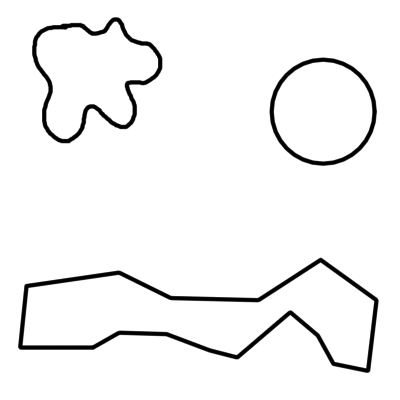
In order to test our behavior, you can either download a floor example here or design one yourself and update your floor picture. For now, it is important to then rename your picture floor.png so it is recognise by the configuration file. If you prefer, you can check how the expConfig.argos file refers to the picture for the ground and change that. Below is a bare-bones example.
local leftSpeed = 5
local rightSpeed = 5

if(robot.ground.left < 0.40) then -- something on my left
  leftSpeed = -3
  rightSpeed = 5
end

if(robot.ground.right < 0.40) then -- something on my right
  leftSpeed = 5
  rightSpeed = -3
end

robot.wheels.set_velocity(leftSpeed, rightSpeed)
Not going to win any race in this state. Try to create a smoother behavior that can adapt to different kinds of paths. And if you are working on this workshop with someone, compare your code, experimental setup (the kind of path you drew) and how quickly your robot manages to reach its goal! Take your time exploring this behavior: you can already learn and practice a lot about navigation here.
Once you are ready, you can move to the next session where we will learn the third way to navigate, and create a foraging behavior.